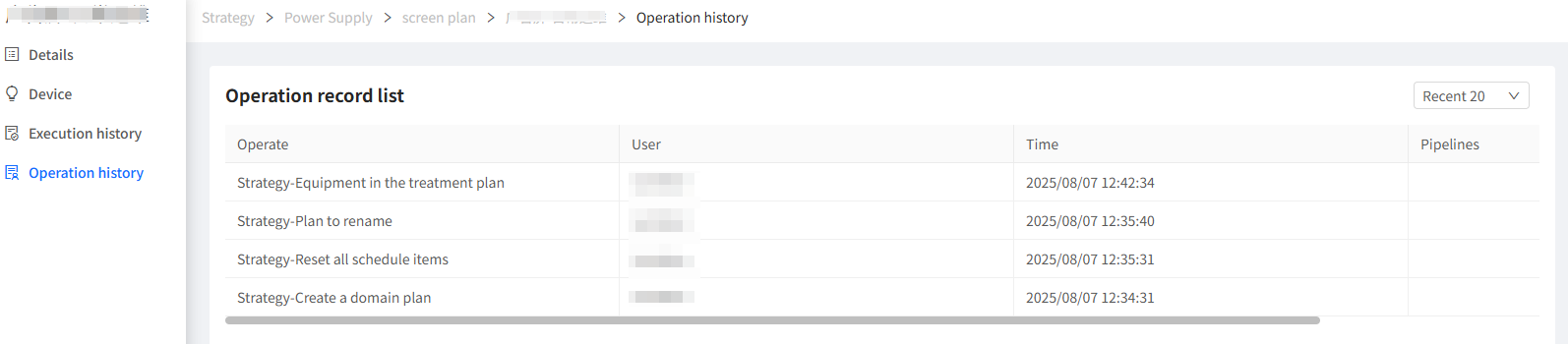
Screen Power Plan
1. Overview
The screen power plan module uses intelligent automatic control strategies to achieve fine control of terminal power supply of LED screens. Support is based on the following trigger conditions:
- Time triggering: Timing control down to the minute level
- Latitude and longitude trigger: Dynamically adjusts based on sunrise/sunset times
It is suitable for scenarios that require fine control of the power supply status of indoor and outdoor LED screen terminals.
In order for the device terminal to correctly configure the relevant power control components, otherwise, the device cannot implement power switch control.
2. Function Introduction
2.1 Plan List
Lists all screen power plans added by the user in the current domain and subdomains.

2.1.1 Operation Steps
- Log in to the system and select the
Smart Strategymodule in the system menu to enter. - In the left menu items, click
Screen Power Planto enter the plan list.
2.1.2 Interface Description
- Pagination displays all plans (default sorted by plan name in ascending order)
- Quick search bar (supports fuzzy query by plan name)
- Status filter (enabled/disabled)
- List displays key information:
- Plan Name: Supports editing
- Status: Current plan status (enabled/disabled), supports filtering by status
- Domain: Domain to which the plan belongs
- Device Count: Number of power supply circuits associated with the plan
- Create Time: Display the creation time of the plan, supports sorting by time
- Update Time: Display the last update time of the plan configuration, supports sorting by time
- Quick Actions: Display the executable operation instructions for the current plan
 : Edit the plan name
 : Delete the current plan
 : Enable the current plan
 : Disable the current plan
2.2 New Plan
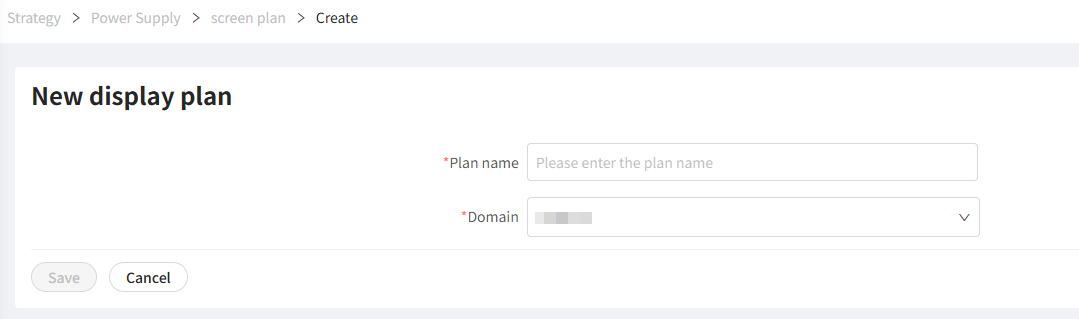
2.2.1 Operation Steps
- Log in to the system and select the
Smart Strategymodule in the system menu to enter. - In the left menu items, click
Screen Power Planto enter the plan list. - Click the "Create" button in the upper left corner of the page, and the create page will pop up on the right.
- Follow the page prompts to complete the plan name and domain selection, and click the "Save" button to enter the plan details page.
2.3 Plan Details
This section is used to view the current plan execution configuration and preview effects.
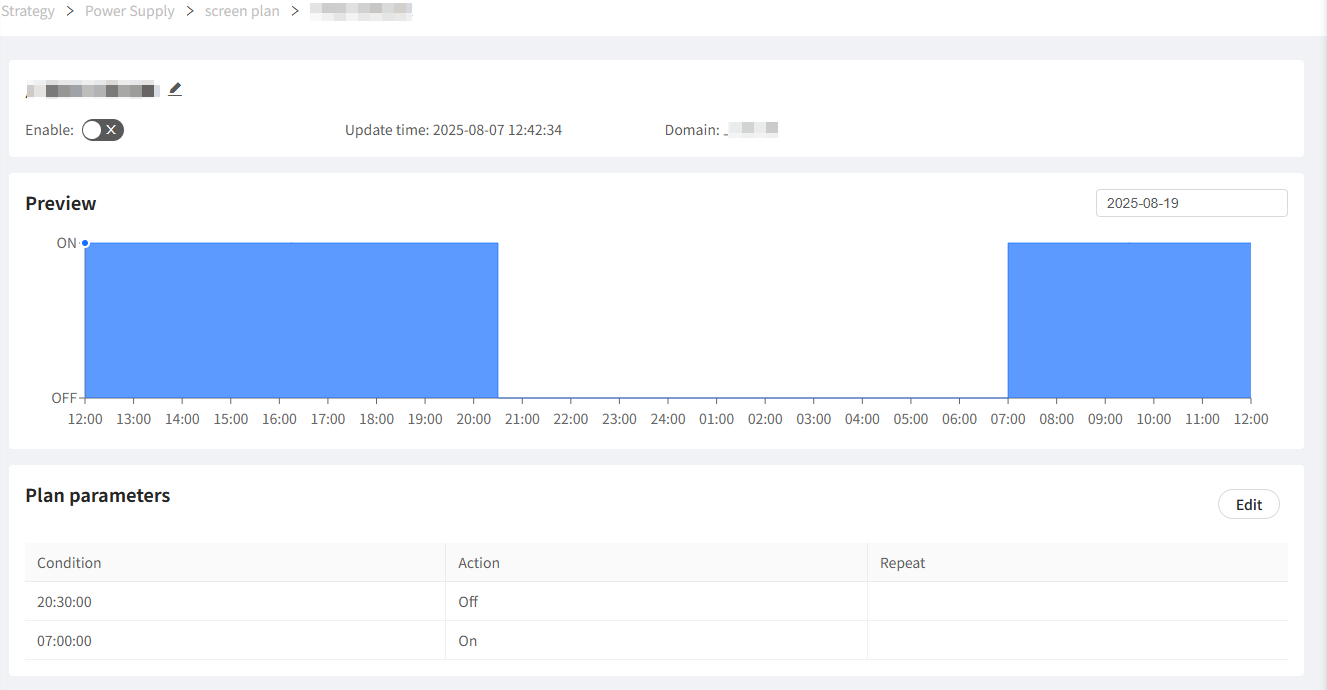
2.3.1 Interface Description
- Basic Information Area
- Plan Name: Supports editing
- Status: Current plan status (enabled/disabled), supports filtering by status
- Domain: Domain to which the plan belongs
- Update Time: Display the last update time of the plan configuration, supports sorting by time
- Preview Area: Chart displays the status (On/Off) change of screen terminal devices on the specified date
- Y-axis: Device status (On/Off)
- X-axis: Time, displaying the period from noon to noon of the next day
- Supports date switching
- Plan Parameter Area: List displays multiple execution parameters in the current plan
- Trigger Conditions: Specific time for plan execution, supports timing and astronomical time based on latitude and longitude (offset adjustable)
- Instruction Parameters: Screen terminal execution instruction, On or Off
- Execution Cycle: Plan execution cycle, default is all dates are effective, supports user-defined month, date, week execution at a certain time point
Plan parameters based on astronomical time, such as sunrise and sunset, will automatically calculate based on the latitude and longitude coordinates of the plan's domain.
2.3.2 Operation Steps
Click the "Edit" button in the plan parameter area to enter the plan edit state.
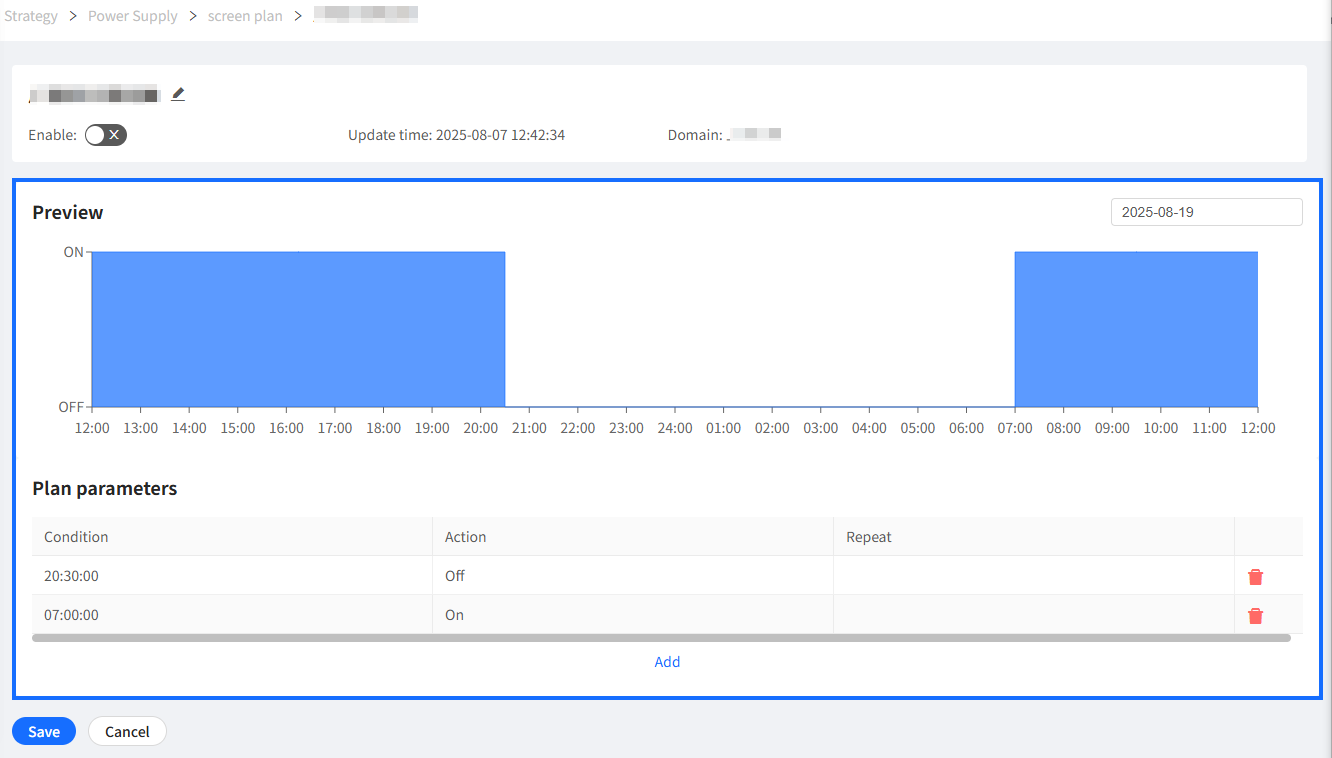
Click on an existing plan item or select the add button to the right, and a parameter configuration interface will pop up on the right. Follow the page prompts to input relevant information:
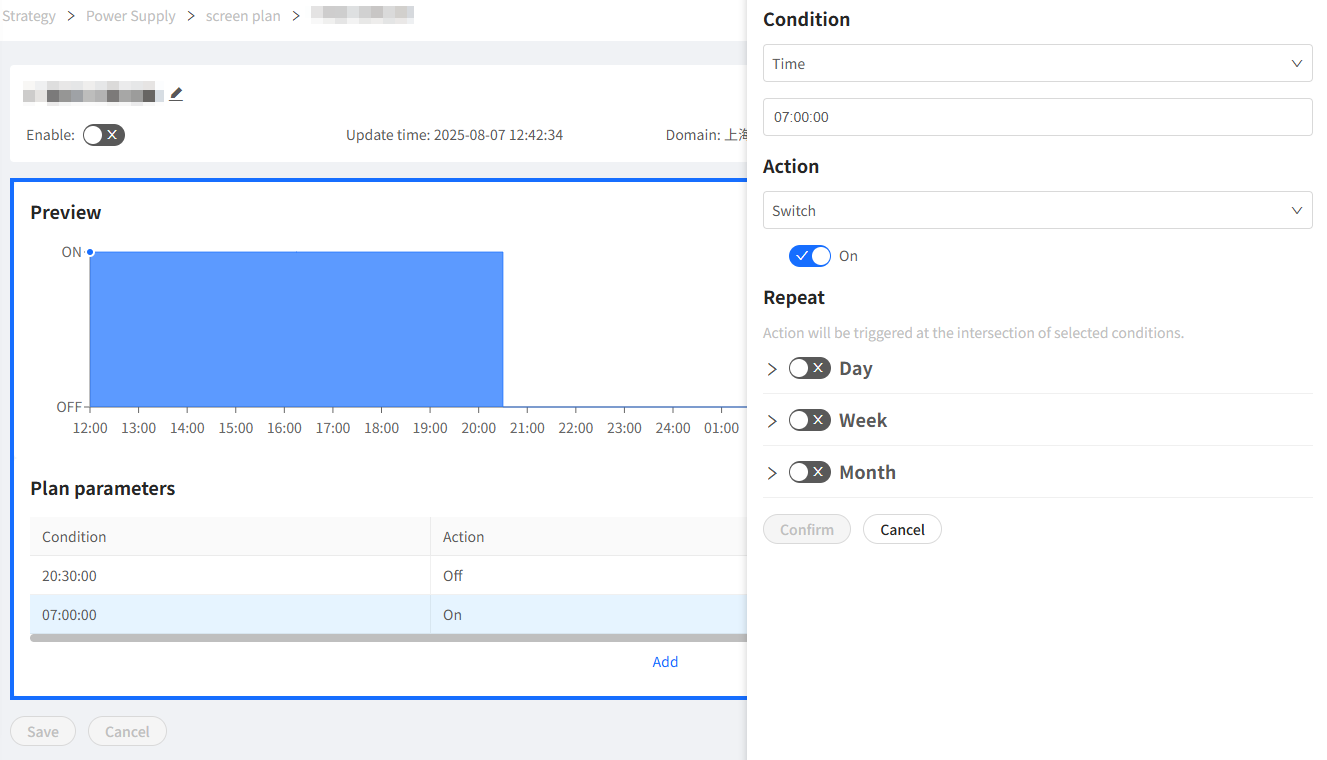
Specific parameter descriptions refer to the plan parameter area description above.
All plan parameter changes need to be saved to take effect.
2.4 Device
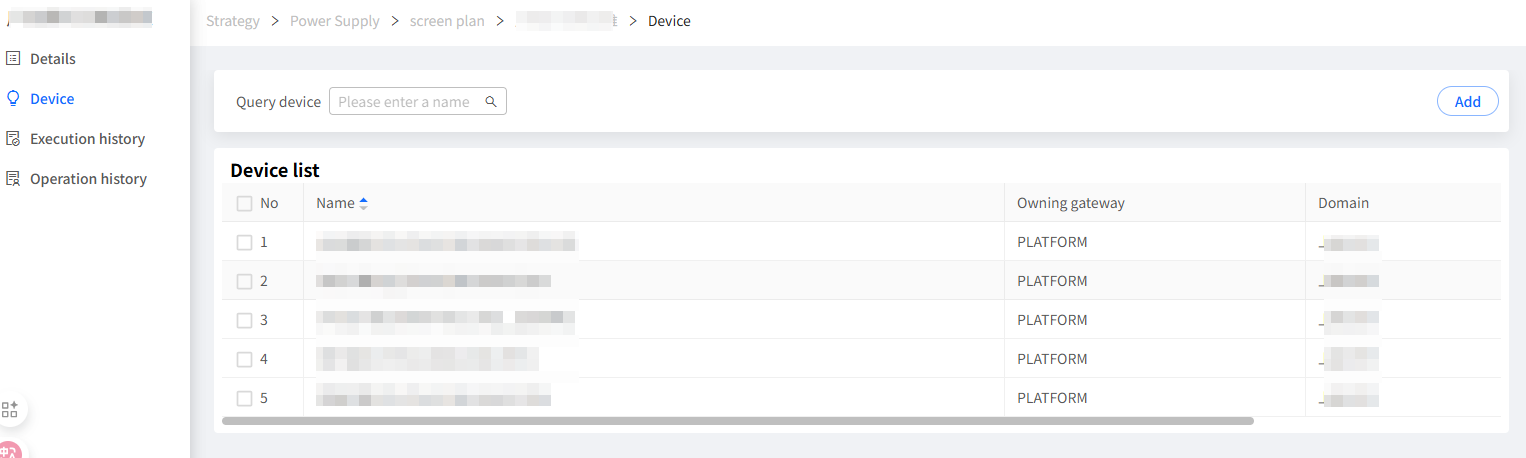
This section configures the target device collection for the current plan execution. The execution device of the screen power plan is the LED screen terminal.
2.5 Execution History
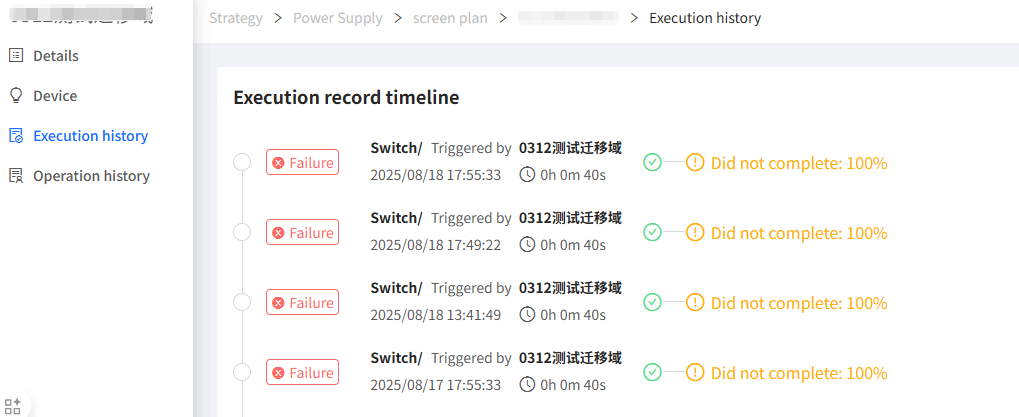
The execution history of the current plan is displayed here, including the execution time, execution status, execution results, and other information.
2.6 Operation Log
The operation history of the current plan is displayed here, including the operator, operation time, operation content, and other information.